FOV Calculator
FOV Calculator is a field of view tool that finds the physical viewing angles a display occupies from your seat. Enter your screen measurements and eye distance to compare setups, understand each angle and keep a record of your geometry. Start with one flat screen, or open the advanced settings for a cylindrical screen or three flat panels. The results describe physical coverage; a game’s camera setting needs its own angle convention.
Set Up Your Display for an FOV Calculation
Three measurements describe the default setup. Use your actual visible panel and normal seated position; the starting values are an example, not a recommended monitor or distance.
Measure Your Display
Enter a diagonal in inches and the width-to-height ratio. For more precise measurements, open Measurement options and use visible width and height. Those values take priority over a nominal screen size and remain intact when you change units.
Measure Eye Distance
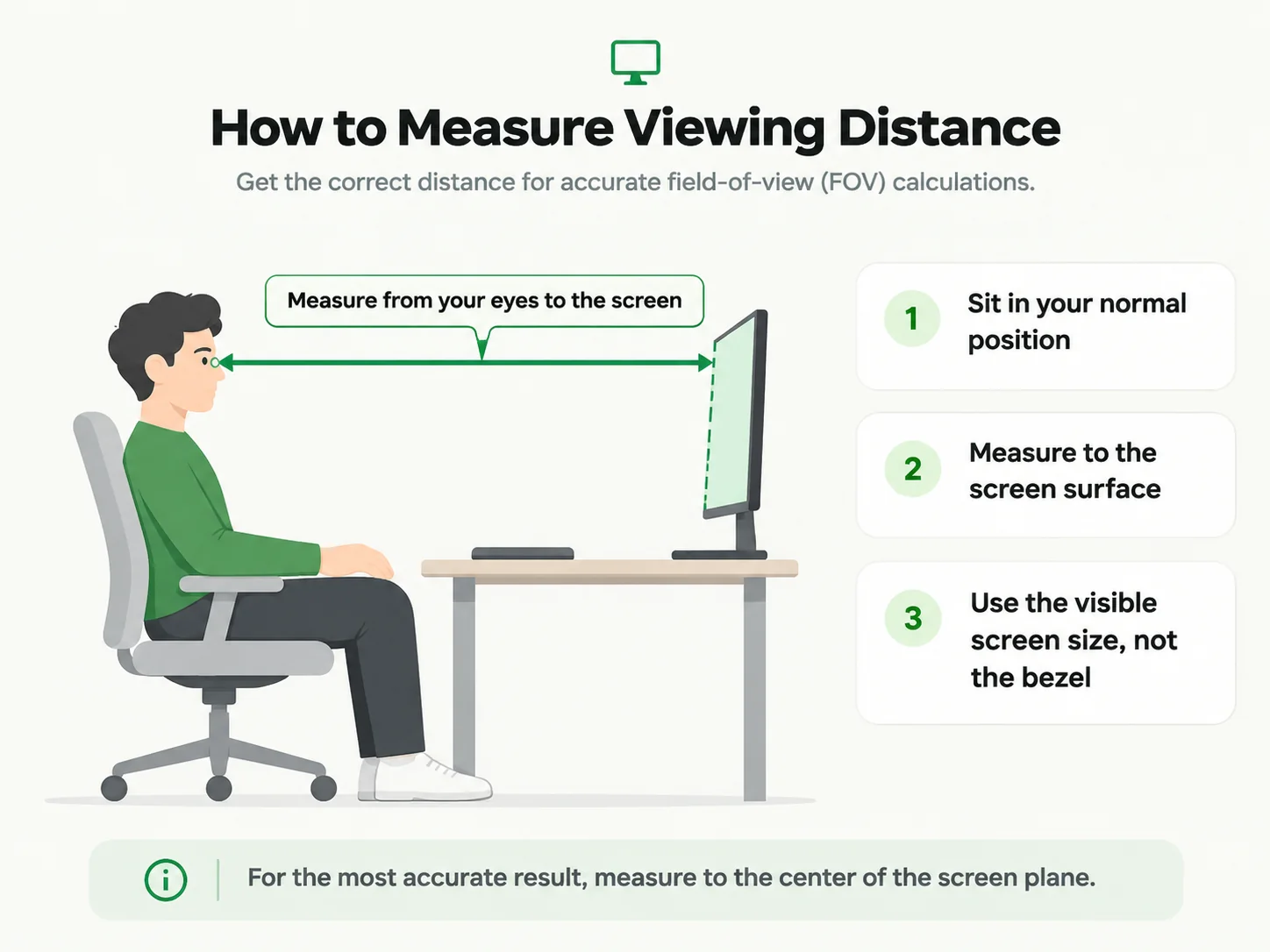
Sit as you normally would and measure perpendicular to the screen midpoint. Choose centimeters, millimeters or inches. The unit buttons convert the same stored length; rounded labels never feed back into the calculation.
Choose Screen Geometry
Keep Single Screen and Flat for a conventional monitor. Advanced Display Settings adds a cylindrical surface model or three identical flat panels. Read the model assumptions before using a result for hardware with a different shape or arrangement.
Diagonal Size vs Visible Width and Height
A 27-inch diagonal runs corner to corner across the image. It is not a 27-inch width. The aspect ratio divides that diagonal into horizontal and vertical spans. Exclude the frame and casing from direct measurements: they occupy space but do not show an image.
When direct dimensions are selected, a resolution preset only suggests a ratio; it does not overwrite the visible width and height. This helps when a rounded marketing diagonal or a letterboxed image does not describe the active area accurately.
Use Resolution Only to Identify Aspect Ratio
Resolution can identify a proportion, not a physical length. A 3440×1440 image has a ratio of 43:18, about 2.389, whereas nominal 21:9 is about 2.333. These choices remain separate. In diagonal mode, selecting a different ratio changes the inferred width and height, and the tool tells you when that happens.
Understand Your Horizontal, Vertical and Diagonal FOV
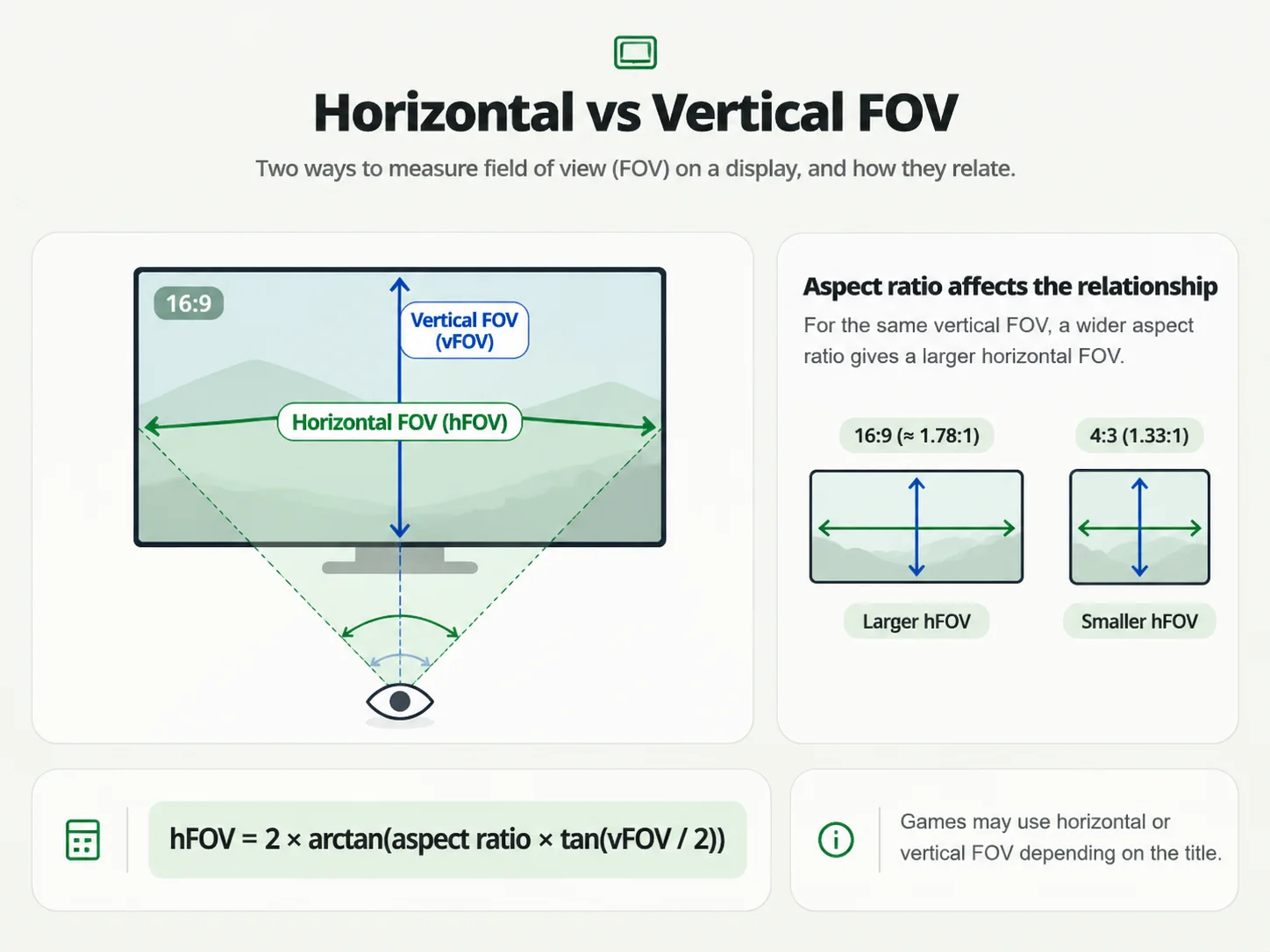
Field of view is an angle between lines of sight. Each axis describes a different span, even though the measurements belong to the same display.
Horizontal: Left to Right
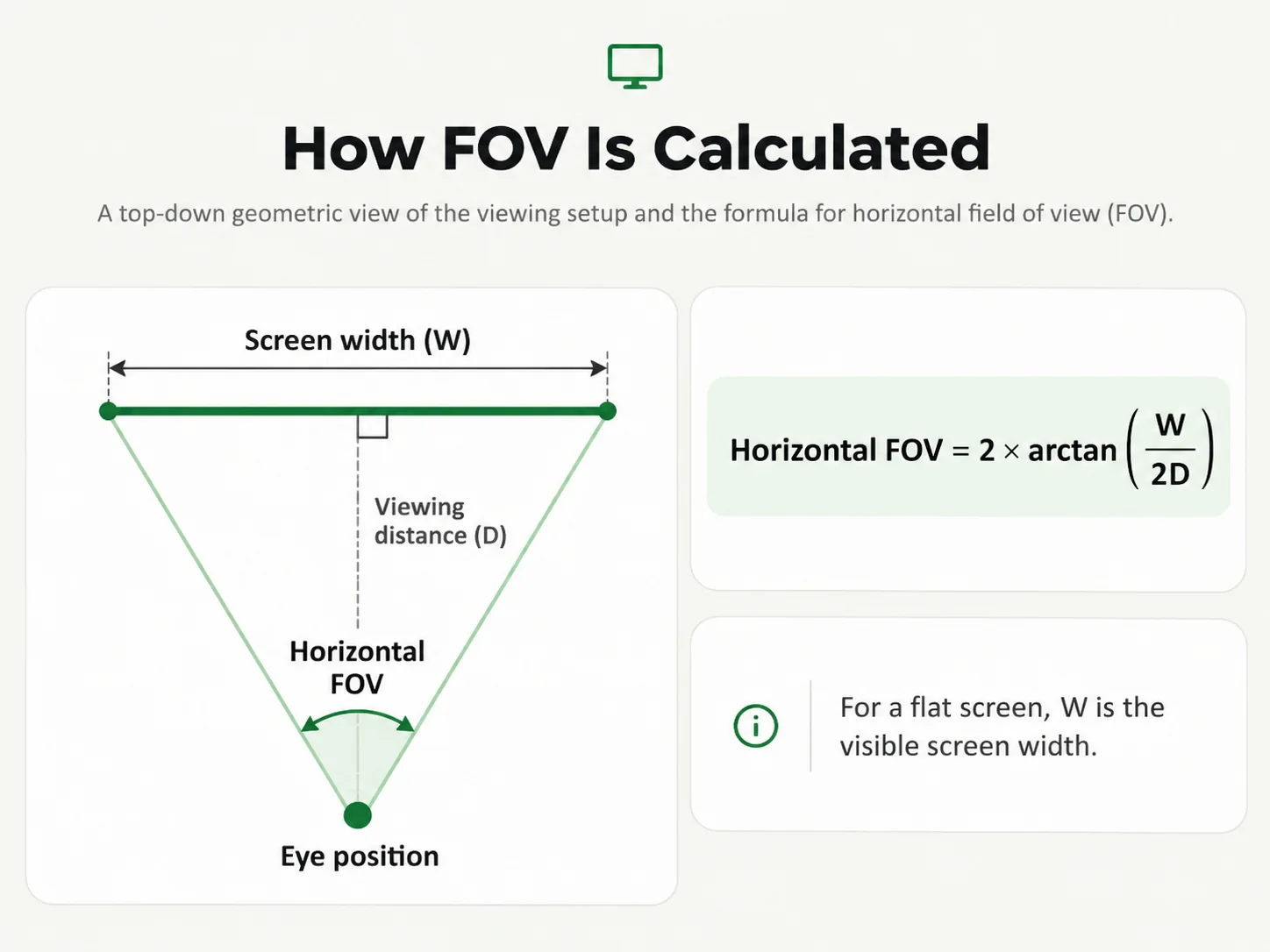
Horizontal FOV spans the visible left and right edges. The live top-down diagram shows these rays and scales both axes equally, so the drawn angle follows the measurements.
Vertical: Top to Bottom
Vertical FOV spans the top and bottom of a centered flat screen. In the curved and triple models, the reported vertical angle is the center panel’s vertical centerline span, labeled separately from horizontal coverage.
Diagonal: Opposite Corners
For a centered eye facing a flat rectangle, diagonal FOV spans opposite corners. It uses the physical diagonal, not the sum of horizontal and vertical angles. It is withheld for curved surfaces and offset-eye triple layouts.
Why Game Settings May Use Different Angles
A screen angle and a rendered camera angle describe different things. Games may request horizontal degrees, vertical degrees or another convention. If you already know an angle and need to change axis or aspect ratio, use the FOV converter. Multiplying an angle by the aspect ratio does not perform that conversion.
What the Diagonal Angle Represents
The flat-screen diagonal assumes your eye is opposite the rectangle’s center and the distance is perpendicular to its plane. A cylindrical surface has no equivalent flat diagonal under this model. A missing result is a scope limit, not a zero-degree angle or an instruction to enter zero in a game.
How Screen Size and Viewing Distance Change FOV
Moving closer to an unchanged display increases its physical angles; moving farther away reduces them. Increasing screen size at the same distance also increases coverage. These changes concern the real screen, regardless of which game or desktop image is displayed.
A Worked Example: 27-Inch 16:9 Monitor at 60 cm
The default rectangle is 59.77 cm wide and 33.62 cm high. At 60 cm, it occupies 52.96° horizontal, 31.30° vertical and 59.50° diagonal. The flat formula is twice the arctangent of half the relevant span divided by distance. Show formula above lists all three equations.
The diagonal and ratio become physical dimensions before the angle calculation. Lengths use one internal unit, trigonometric functions use radians and output uses degrees. Copy results includes dimensions and assumptions so an isolated number does not lose its meaning.
Why Resolution Does Not Change Physical FOV
Replacing a 2560×1440 panel with a 3840×2160 panel of the same visible size and shape does not change its angle at the same distance. More pixels change detail, not geometry. A different aspect ratio can change inferred dimensions when diagonal size is held fixed; that is a shape change rather than a pixel-density effect.
Choose the Screen Geometry That Matches Your Setup
A rectangle, a curved surface and three rotated panels need different coordinates. Advanced results are geometric models with explicit boundaries, rather than universal monitor or game recommendations.
Single Flat Screen
Use a centered eye and perpendicular distance. Horizontal, vertical and diagonal results describe the same visible rectangle. A tilted screen, an offset single-screen viewpoint or optical lens system needs a different model.
Curvature Radius and Curved Displays
1000R means a 1000 mm radius, not a viewing distance recommendation. Width follows the horizontal surface arc. The model derives the shorter projected chord and how far the edges bend toward you. A diagonal assumes an unrolled rectangle; check the manufacturer’s size convention.
Horizontal FOV uses actual edge positions. The model rejects an arc of 180 degrees or more, or edges reaching the eye plane. Vertical is measured at the centerline; no flat diagonal is shown.
Why Triple Screens Need Side Angles
The center display and two identical side displays share a vertical center. Side angle is the inward rotation from a coplanar arrangement; you enter it rather than receive an unexplained recommendation. Eye offset can move right or left within the center display’s span.
The gap is the horizontal emitting-edge separation before each hinge, including both bezels and any space. Coverage joins panel angular intervals and counts overlapping directions once. Outer boundary span also includes gaps. It is not three times the center FOV or a game’s multi-viewport setting.
Curved triple screens, unequal panel sizes, vertical staggering and folded or intersecting hardware are outside the available models. Unsupported combinations clear the numeric results. For a supported setup, Share setup copies a link containing display parameters; opening it restores those parameters after validation. Invalid links restore the example defaults.
Use the Result in a Racing Game
Open Game FOV Settings beneath the main result for a physical reference and evidence status. The selector does not turn an unverified game into a supported numeric mapping. Curved and triple selections suppress game-reference numbers because those configurations have not been verified against a game client here.
Horizontal FOV, Vertical FOV and Game Sliders
Establish the axis and projection convention in your installed game. The Sim racing FOV settings workbench covers cockpit measurement considerations. The iRacing setup guide connects single-flat-screen measurements to its documented native monitor workflow, without claiming either website angle is a tested slider value.
When a Game-Specific Conversion Is Unverified
Assetto Corsa and ACC appear as evidence-status choices, with physical hFOV and vFOV only for a single flat screen. No game-specific value or unpublished guide link is supplied. A documentation check is distinct from testing a named game build, camera mode and accepted field range.
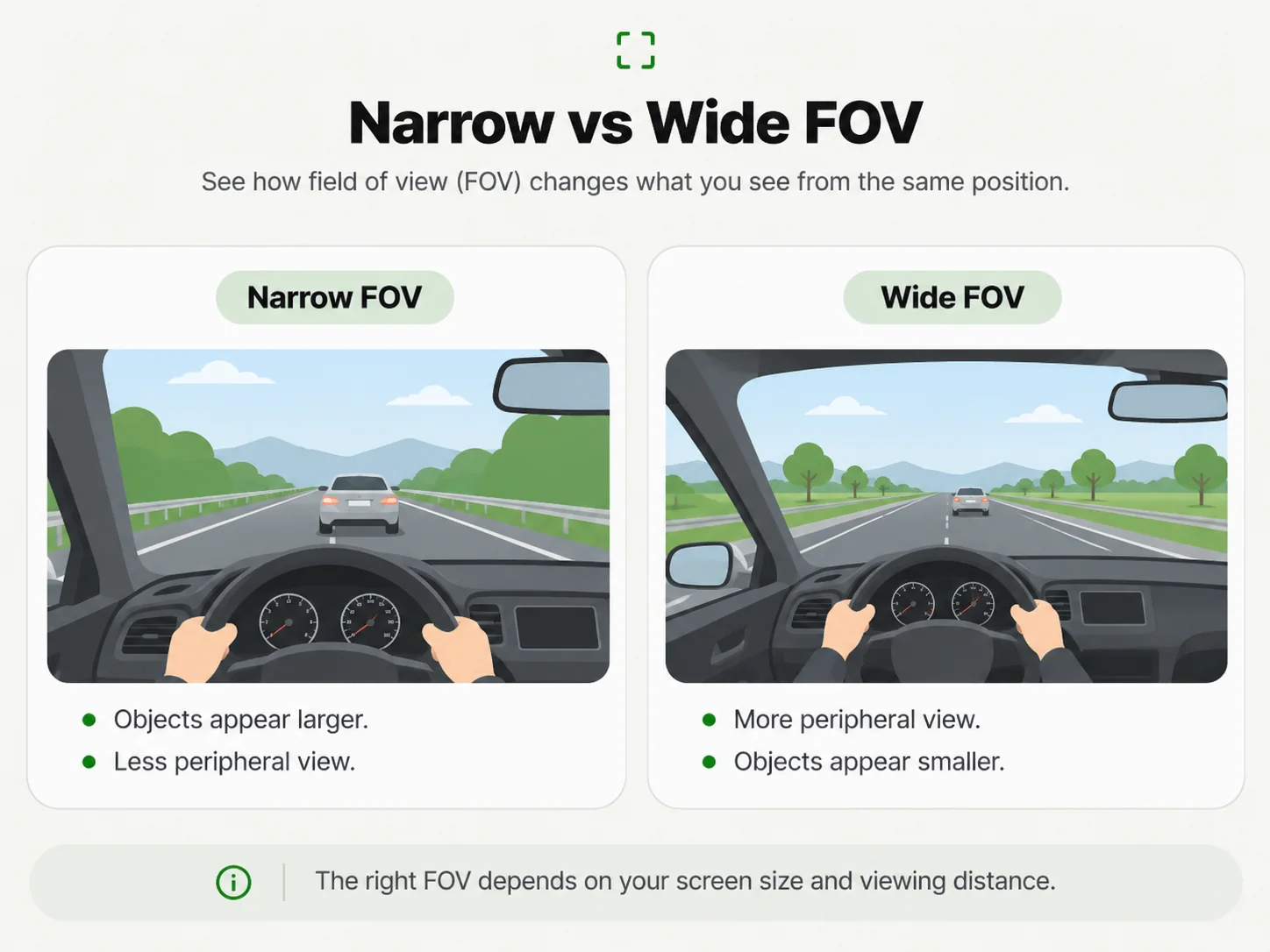
The driving illustration shows the general visual effect of changing a virtual camera’s view. It is a qualitative scene demonstration, not a calibrated rendering of your calculated angles, a measured game comparison or a promise of improved driving results.
Common Mistakes That Change Your FOV Result
Check the measurement before comparing numbers from different tools.
Measuring from the Monitor Back
The casing and stand sit behind the visible surface. Measure to the midpoint from your eye position without leaning forward. A desk-edge measurement can describe a different triangle entirely.
Including the Bezel
The frame adds hardware width without image content. Keep visible dimensions separate from housing dimensions. For triples, record the specified gap separately rather than adding it to each panel’s emitting width.
Confusing Horizontal and Vertical Angles
A horizontal result can be much larger than a vertical result for the same display. Compare matching axes and keep units and aspect ratio beside any copied angle.
Treating Curved and Triple Screens as Flat
A surface arc differs from its chord, and a rotated side panel does not stay in the center plane. Choose the matching model and read its limits before comparing physical coverage with a game’s rendered view.
Frequently Asked Questions
Does 4K resolution change my physical FOV?
No, if visible dimensions and distance stay the same. A resolution preset helps specify aspect ratio. In diagonal mode, changing ratio can change inferred dimensions; in measured-dimensions mode it does not overwrite your lengths.
What distance should I measure to the screen?
Use perpendicular distance from your normal eye position to the surface midpoint. For an offset triple setup, enter perpendicular distance and horizontal eye offset separately, rather than entering a slanted tape length as distance.
Should I enter the monitor’s diagonal size or width?
Either works with the matching fields. Enter diagonal plus ratio for nominal dimensions, or visible width plus height for measured dimensions. A curved width must follow the surface arc; the projected chord is a different measurement.
Is horizontal FOV the same as my game’s FOV setting?
Only if the game’s documented axis and projection convention match the calculated angle. This tool labels physical references and unverified game settings separately. It does not infer a game slider from a title alone.
Can I use the flat-screen result for a curved monitor?
Use the cylindrical model when its assumptions match the panel. The flat formula places edges in one plane; the curved model positions them using radius and surface arc length. Very large radii approach the flat result under the same unrolled-width definition.
Why do I see a different result in a game-specific calculator?
Check axis, exact ratio, diagonal convention, eye distance and geometry first. A game tool may model multiple rendered projections or use its own field convention. Agreement requires the same inputs and output definition.